Home Office Lighting Guide: How to Light Your Desk for Productivity and Video Calls
Learn how to set up home office lighting that reduces eye strain, boosts focus, and makes you look professional on video calls — without expensive equipment.
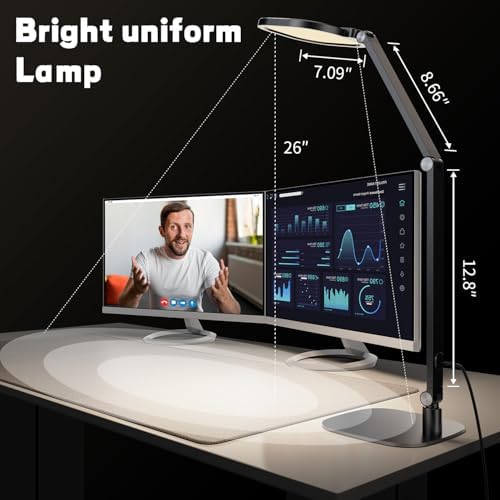
Bad lighting is one of the most overlooked problems in home office setups. It causes eye strain, kills your focus, and makes you look like a ghost on Zoom. Good lighting costs less than most people expect and makes a bigger difference than almost any other upgrade.
This guide covers everything: the difference between ambient and task lighting, how to choose the right color temperature, and how to set yourself up for both deep work and video calls.
Ambient vs. Task Lighting
Most people treat these as the same thing. They’re not.
Ambient lighting is the general illumination in your room — overhead lights, floor lamps, natural light from windows. It sets the baseline brightness and prevents the sharp contrast that causes eye strain when staring at a screen.
Task lighting is directed at your specific work area — a desk lamp, a monitor light bar, a ring light. It adds focused illumination where you actually need it.
You need both. Working with only task lighting in a dark room creates high contrast that fatigues your eyes faster. Working with only ambient lighting often means not enough light on what you’re actually doing. The goal is a balanced, layered setup where neither your screen nor your face is fighting against darkness or glare.
Color Temperature: The Number That Actually Matters
Color temperature is measured in Kelvin (K). Lower numbers are warm and orange; higher numbers are cool and blue-white.
For Productivity and Focus: 5000K–6500K
Cool, daylight-balanced light (5000K and above) keeps you alert. It closely mimics natural daylight and is ideal for morning and afternoon work sessions. If you find yourself getting drowsy during the day, switching to a cooler bulb often helps more than a second cup of coffee.
For Evening and Wind-Down: 2700K–3000K
Warm light signals to your brain that it’s winding down time. If you work late, switching your desk lamp to a warmer temperature in the evening reduces blue light exposure and makes it easier to fall asleep afterward. Many smart bulbs and adjustable lamps let you shift temperature throughout the day automatically.
The Practical Recommendation
Get lights with adjustable color temperature if you can. A fixed 5000K bulb is fine if you only work during daylight hours. If you work evenings or want a cozier feel for non-focused tasks, tunable white (2700K–6500K) is worth the slight premium.
Monitor Lighting vs. Desk Lamps
These solve different problems.
Monitor Light Bars
A monitor light bar like the BenQ ScreenBar Plus sits on top of your display and shines light downward onto your desk. The key advantage: it illuminates your keyboard and notes without casting any light onto the screen itself, so there’s zero glare or reflection. This is the best solution for eye strain during long work sessions.
Light bars work best as task lighting for your immediate desk area. They’re not bright enough to light a room, and they don’t help with video calls — the light points down, not at your face.
Desk Lamps
A good desk lamp is more versatile. You can aim it at your work surface, bounce it off a wall for diffused ambient light, or position it to improve your appearance on camera. The downside is that poorly positioned desk lamps can create screen glare or wash out the contrast on your display.
If you’re choosing between a monitor light bar and a desk lamp, get the light bar for eye comfort during work and address video call lighting separately.
Lighting for Video Calls
This is where most home offices fall apart. The most common problems:
- Backlit by a window — your face is a dark silhouette
- Overhead lighting only — creates unflattering shadows under eyes and chin
- No front light — any lamp in the room is beside you, creating uneven shadows
The Fix: Key Light in Front, Above Eye Level
A dedicated key light positioned in front of you and slightly above eye level solves all three problems. The Elgato Key Light is the standard recommendation for this — it’s bright, has adjustable color temperature (2900K–7000K), and is controlled via app or Stream Deck.
You don’t need two lights unless you’re on camera professionally. One well-positioned key light with ambient room lighting behind it is enough for most video calls.
Matching Your Key Light to Your Background
If you have a window behind you, either close the blinds when on calls or get a key light bright enough to overpower it. The goal is to be the brightest thing in the frame, not competing with natural light from behind.
A Practical Lighting Setup by Budget
Minimal (under $50): Replace your overhead bulbs with 5000K LED bulbs and add a basic adjustable desk lamp. Not glamorous, but it works.
Mid-range ($100–$200): A monitor light bar for daily work (the BenQ ScreenBar Plus is the best-in-class option) plus a warm floor lamp for ambient fill. Your eyes will thank you.
Full setup ($250+): Monitor light bar + Elgato Key Light for video calls + smart bulbs in your overhead fixtures. This covers every scenario and gives you precise control.
Before and After: What Changes
Before: A single overhead light, screen glow in an otherwise dim room, dark face on video calls, eye strain by 2pm.
After: Balanced ambient light, monitor bar eliminating screen glare, key light making you look present and professional on calls, and color temperature that shifts with your schedule.
The difference is noticeable immediately — both to you in terms of comfort and fatigue, and to everyone you call.
Conclusion
Start with color temperature and ambient balance before buying anything. Fix the basics (replace dim or warm bulbs, add a cheap lamp to eliminate contrast) and see how much that alone improves things. Then add a monitor light bar if eye strain is your main issue, or a key light if video calls are your priority. You don’t need to do everything at once.