Standing Desk Cable Management: The Complete Guide
The most common complaint after buying a standing desk is the cable chaos that follows. Here's how to tame it permanently with the right tools and approach.
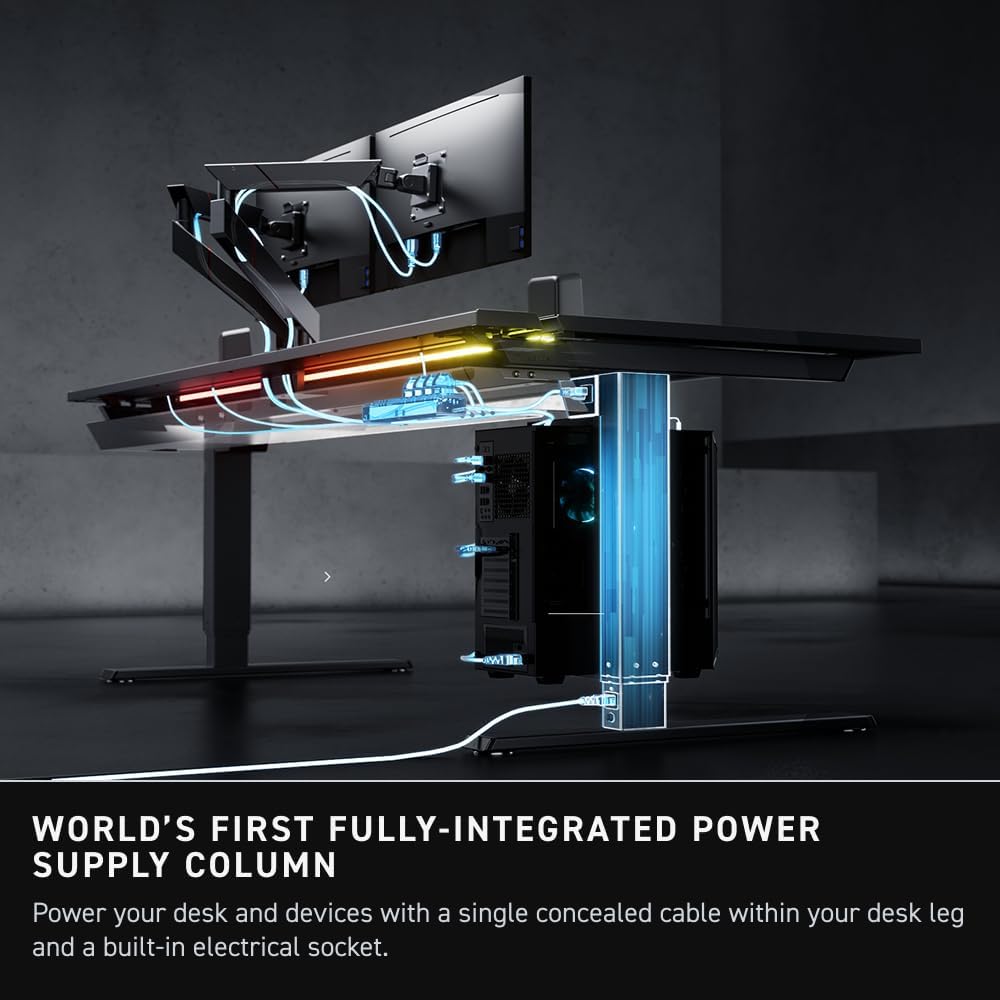
Standing desks are great until you raise them for the first time and watch a tangle of cables drag across your desk, yank at your monitor, or just hang there looking terrible. Cable management is the unglamorous part of any desk setup — but getting it right makes the whole thing feel intentional.
This guide covers the tools and order of operations to go from cable chaos to a clean, functional setup that actually works when the desk moves.
Why Standing Desks Make Cable Management Harder
A static desk is easy. You zip-tie everything to the frame and forget about it. A standing desk introduces a moving element — the desktop travels 12–24 inches vertically, and every cable attached to it needs enough slack and flexibility to handle that range of motion without pulling tight or piling up on the floor.
The goal isn’t just aesthetics. Cables that get pinched or over-stressed fail early. Cables that drag on the floor gather dust and become trip hazards.
The Four Tools You Actually Need
1. Cable Spine or Drag Chain
A cable spine (also called a cable chain or drag chain) keeps your monitor, USB hub, and power cables bundled together as the desk moves. It hangs vertically from the desktop to the floor, expanding and contracting with the desk height.
This is the single most important piece of the puzzle for motorized desks. Without it, cables bunch at the bottom when the desk is low and go taut when it’s raised.
2. Under-Desk Cable Management Tray
A cable tray mounts to the underside of your desktop and holds your power strip, excess cable slack, and anything that doesn’t need to be on the surface. Look for a metal mesh tray — they’re more durable than plastic and easier to route cables through.
The EVEO cable management tray is a solid, no-nonsense option that handles most setups well. Mount it toward the back center of the desk for the best balance of access and concealment.
3. Cable Boxes for Floor-Level Clutter
Your power brick, surge protector, and any wall-wart adapters can live in a cable box on the floor near the base of the desk. Cable boxes aren’t strictly necessary, but they turn a pile of black plastic and wires into something invisible.
Leave enough slack between the cable box and the cable spine so the desk can rise fully without lifting the box off the floor.
4. Dock Positioning
Where you put your laptop dock or USB hub matters. Mounting it under the desk (velcro or screws) keeps the desktop clear and shortens cable runs. If you mount it on the frame’s crossbar rather than the desktop itself, you eliminate one moving connection entirely — everything from the dock to the wall becomes static.
Step-by-Step Approach
Step 1: Inventory your cables. Lay everything out before you route anything. Count monitor cables, USB connections, power runs, and audio. Know what you’re working with.
Step 2: Mount the tray. Install the under-desk tray first, before running any cables. It’s much easier to do with clear access underneath.
Step 3: Position and mount the dock. Decide whether it goes under the desktop or on the frame. Velcro works fine for lightweight hubs. Use screws for heavier docks.
Step 4: Route and bundle desktop cables. Run cables from your monitors, peripherals, and accessories into the tray. Use velcro ties (not zip ties — you’ll thank yourself later when you need to change something) to bundle groups together.
Step 5: Install the cable spine. Attach the top of the spine to the underside of the desktop near the back edge, and let it hang to the floor. Feed your moving cables — monitor, USB hub, any powered peripherals — through the spine.
Step 6: Test the full range of motion. Raise and lower the desk through its complete range. Cables should move freely with no pulling, no dragging, and no excess pile-up.
Common Mistakes
Too little slack. Cables that are just barely long enough at full height will pull tight and stress connectors. Add 20–30% more than you think you need.
Routing everything through the spine. Only moving cables need to go through the spine. Power to the desk frame, static wall connections, and floor-level runs should stay outside it to reduce bulk.
Skipping the tray. Without a tray, you end up zip-tying cables directly to the frame — which works until you need to swap anything out.
The Result
A well-managed standing desk setup has essentially no visible cables from the front. The desktop is clean, the spine handles vertical movement invisibly, and everything under the desk is contained in the tray or a floor-level cable box. It takes a couple of hours to do right the first time, but you won’t have to touch it again.
Start with the tray and the spine — those two pieces solve 80% of the problem for most setups.