Microsoft Sculpt Ergonomic Desktop Keyboard
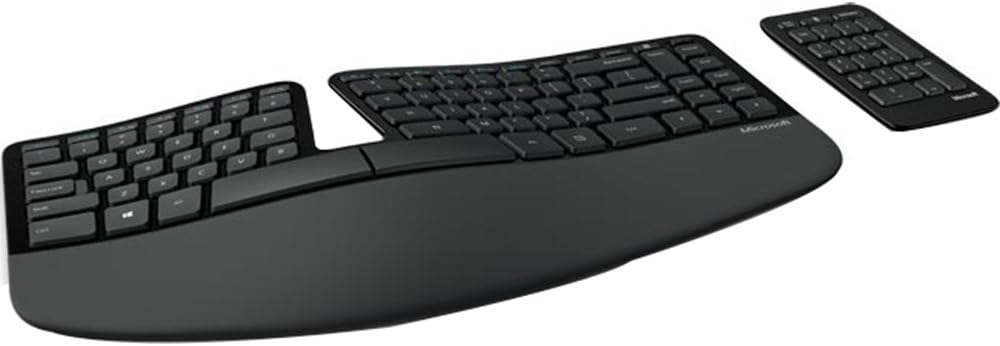
The most approachable ergonomic keyboard on the market — a split layout with cushioned palm rest that eases wrist strain without the learning cliff of a full ortholinear board.
Price may vary. As an affiliate, we earn from qualifying purchases.
What we like
- Gentle split angle is easy to adapt to, even for ergonomic newcomers
- Separate number pad keeps the mouse closer to your body
- Cushioned palm rest is included and well-sized
- Quiet, soft dome keys feel comfortable for long typing sessions
- 2.4GHz USB dongle is reliable and low-latency
Could be better
- Windows-only — no Mac layout or Command key support
- Dome switches won't satisfy anyone who wants tactile feedback
- Non-rechargeable; runs on AA batteries
- USB dongle occupies a port permanently
Full Review
The Microsoft Sculpt Ergonomic Keyboard has been around long enough to earn a reputation: it’s the board people buy when their wrists start complaining and they’re not ready to commit to a $300 split keyboard. That reputation is well-deserved, mostly.
The Split Layout That Doesn’t Scare You
Most ergonomic keyboards ask a lot of you up front — tenting angles, blank keycaps, thumb clusters. The Sculpt asks almost nothing. The split is gentle, maybe 10–15 degrees, and the keys are still in QWERTY positions you’ve used your whole life. Most people adapt within a day or two. The domed arch in the middle of the board encourages your wrists to stay flatter, which is the whole point. It won’t fix a severe RSI problem, but it makes a meaningful difference for everyday fatigue.
Keys and Palm Rest
The dome switches are quiet and soft — too soft if you’re used to mechanical keyboards. There’s minimal tactile feedback, so touch typists may find themselves bottoming out more than they’d like. What the keys lack in satisfaction they make up for in noise; this is a genuinely quiet keyboard for open offices. The attached palm rest is well-padded and correctly positioned, something you can’t say for most aftermarket wrist rests that sit too far from the keys.
The Separate Number Pad
Splitting off the number pad is one of the better decisions Microsoft made here. On a standard full-size board, the numpad pushes your mouse arm out wide, which torques your shoulder over hours of work. With the Sculpt, you move the numpad wherever it’s useful — off to the side, tucked away — and your right hand returns to a natural position. It’s a small thing that adds up over a long day.
What You’re Giving Up
This is a Windows keyboard, full stop. There’s no macOS layout, no Command key, and the Windows key shortcuts won’t map cleanly. The 2.4GHz dongle is solid but takes up a USB-A port indefinitely. Battery life is reasonable, but it’s disposable AAs, not USB-C charging. And if you develop a taste for ergonomic typing and want more — adjustable tenting, mechanical switches, Bluetooth — you’ll eventually outgrow this board.
Who Should Buy This
The Sculpt is the right call if you’re typing on a flat keyboard and starting to feel it in your wrists, but you’re not ready to spend $250+ or retrain your muscle memory. It’s also a reasonable office purchase for Windows shops that want to offer staff an ergonomic option without a support headache. If you’re already comfortable with split keyboards or you use a Mac, look elsewhere — the Logitech Ergo K860 adds Bluetooth and Mac support for not much more money.